How to Build 2-Second Crumpled Paper Unfold Hooks for Reels, TikTok, and Shorts
 Paper Animator Team
A practical creator playbook for choosing high-contrast source photos, setting torn borders and shadows, and exporting crisp 2-second paper unfold openers.
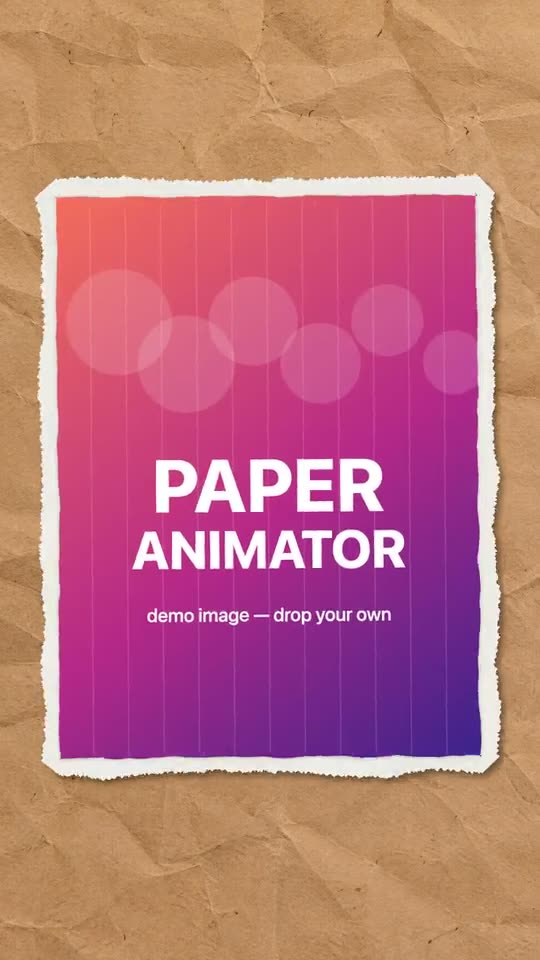
Viewers on TikTok, Instagram Reels, and YouTube Shorts make their keep-or-swipe decision inside the first two seconds. A static headshot or slow fade-in blends into the feed, whereas a crumpled paper ball snapping open into a crisp torn-edge sticker gives the eye a clear physical motion cue right before your first spoken line lands.
The difference between a forgettable paper clip and a scroll-stopping hook rarely comes down to complicated editing. It comes down to three choices you make before you hit export: the silhouette of your source picture, the contrast between the sticker border and the backdrop, and how tightly the unfold aligns with your voiceover beat.
Step 1: Pick a photo with a clear outer silhouette
Paper Fold works on any JPG, PNG, or WebP picture, yet some images read dramatically better at phone screen size than others. When a paper ball unfolds in less than two seconds, viewers register the overall shape before they read fine surface details.
- Best performers: Head-and-shoulders portraits with clean posture, handheld products, sneakers, coffee cups, book covers, app screenshots, and bold logos.
- Avoid when possible: Cluttered group photos, wide landscape shots where the main subject covers less than 25 percent of the frame, or dark subjects shot against dark walls.
- Cutout vs. full photo: If your photo has a busy room behind the subject, run it through Remove BG first or use the studio's click-to-select subject mode so the torn white border hugs the silhouette instead of forming a plain rectangle. Keep the full rectangular frame only when the background itself tells the story—such as a vintage street photo, a receipt, or a screenshot of a headline.
Before dropping a portrait into the studio, crop it slightly tighter than you think you need. Removing wasted headroom and empty side margins lets the finished sticker occupy a bold, readable footprint in the center of a 9:16 vertical frame.
Step 2: Dial in border width, roughness, and shadow
Inside the Paper Fold studio, a few small visual adjustments completely change the mood of your opener. Rather than guessing each time, start with a reliable preset for your content style and tweak only one slider at a time.
| Creator Style | Backdrop | Border Width | Drop Shadow | Best Match |
|---|---|---|---|---|
| Creator commentary / storytelling | Kraft paper | Medium | Medium-soft | Warm talking-head hooks and diary vlogs |
| Editorial / educational explainers | Parchment | Thin to medium | Subtle | History, book summaries, and case studies |
| Overlay over live A-roll footage | Green screen | Medium to wide | Light or off | Keying directly on top of your camera feed |
| Bold streetwear / music promos | Solid dark or bright color | Wide | Strong | High-contrast drops, flyers, and lyric teasers |
A quick visual rule: wider white borders make dark photos pop on dark timelines, while slightly thinner borders keep bright product photography from looking bulky. If you plan to key a green-screen export over moving camera footage in CapCut or Premiere Pro, keep the drop shadow light or turn it off so the shadow does not pick up a greenish tint during chroma keying.
Step 3: Match aspect ratio and resolution to your edit
Always set your aspect ratio before finalizing framing:
- Choose 9:16 for TikTok, Instagram Reels, and YouTube Shorts so the unfold sits comfortably inside the middle safe zone, well above the caption area and left of the right-hand engagement icons.
- Choose 16:9 for YouTube long-form chapter cards, documentary B-roll, or podcast video intros.
- Choose 4:5 for Instagram feed carousels and paid social ads, or 1:1 for square thumbnails and community posts.
During drafts and timing tests, the free 720p watermarked download is plenty to check pacing against your audio track. Once your script and timing are locked, unlock a clean 1080p MP4 export so the torn paper edges stay razor-sharp after social platforms apply their own compression.
Step 4: Time the unfold to your spoken hook
Dropping a paper clip at 00:00 without aligning it to your voiceover wastes half its punch. Try one of these three proven timeline placements:
- Cold-open punch (0.0s–1.8s): Start the video on the crumpled paper ball with a crisp paper-tick sound while your voice says the first provocative phrase, then hard-cut to your camera as the sticker settles flat.
- Evidence pop-in (2.0s–4.5s): Open on your face for one short sentence ("Everyone missed one detail in this launch…"), then trigger a green-screen Paper Fold sticker right on the key noun so the object unfolds directly over your shoulder.
- Chapter divider (mid-video reset): Every 12 to 18 seconds in a 60-second short, drop a 1.2-second paper unfold introducing the next item ("#2", a product shot, or a screenshot) to reset viewer attention.
If your editor timeline runs at 30 fps or 60 fps, do not speed-ramp the paper clip to smooth it out. The tactile stop-motion cadence is the entire reason the clip looks like handmade paper rather than a generic slide transition.
Step 5: Decide between MP4, green screen, or a transparent PNG sticker
You do not need an animated unfold for every beat in a video. Many top-performing shorts combine one animated Paper Fold intro with two or three static torn-paper PNG stickers exported from the same session:
- Export MP4 with kraft or parchment backdrop when the animation fills the entire screen as a cold open or section card.
- Export MP4 with green screen when the sticker needs to unfold directly over live B-roll or a talking-head shot (see our green-screen keying guide for CapCut, Premiere Pro, and DaVinci Resolve).
- Export transparent PNG when you simply want a static torn-edge sticker that pops onto the screen with a quick scale bounce in your editor.
Quick pre-export checklist
- Subject fills at least half the sticker frame with a clean silhouette.
- Aspect ratio matches your target timeline (
9:16,4:5,1:1, or16:9). - Safe margins leave breathing room around captions and platform buttons (check our Short-Form Video Safe Zones Cheat Sheet).
- Paper-tick audio is turned on for solo hooks, or muted when your timeline already carries dense music and sound design.
Ready to build your next opener? Drop a portrait or product shot straight into the Paper Animator studio and preview your first unfold in seconds.
More Creator Guides
All guidesDocumentary Text Match Cut Settings: Word Length, Motion Blur, and Pacing Guide
Learn how to choose anchor keywords, balance frame speed and frame count, and tune vertical or radial blur for readable Vox-style newspaper text match cuts.
Using Magazine Letters for Lyric Intros, Pop-Culture Hooks, and Music Clips
How to turn short phrases into energetic ransom-note magazine cutout animations for lyric teasers, pop-culture recaps, and zine-style title cards.
Turning Product Photos into Torn-Paper Stickers for Storefronts and Social Ads
Step-by-step workflow for combining Remove BG cutouts with Paper Fold torn borders to create scroll-stopping product stickers for Shopify, Etsy, TikTok Shop, and Instagram.