Keying Green-Screen Paper Clips in CapCut, Premiere Pro, and DaVinci Resolve Without Losing White Edges
 Paper Animator Team
Exact chroma-key and spill-suppression workflows for CapCut, Adobe Premiere Pro, and DaVinci Resolve so torn white paper borders stay bright and halo-free.
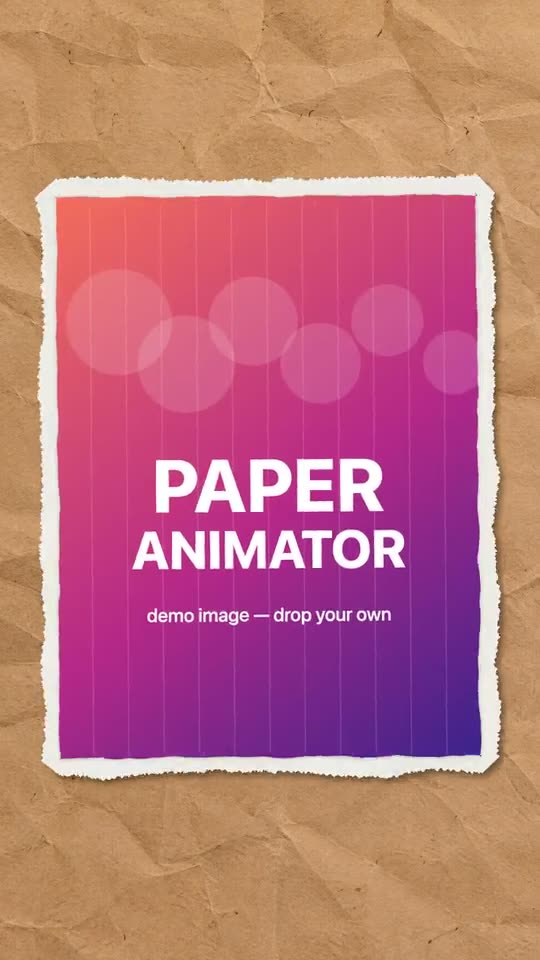
Exporting a Paper Fold clip on a green-screen background lets your crumpled paper ball unfold directly on top of live A-roll, talking-head footage, or screen recordings. Yet many editors run into the exact same headache the first time they drop a green-screen paper clip onto their timeline: pushing the chroma-key strength too high chews away the delicate jagged white torn border, while leaving it too low leaves a glowing neon-green fringe around the paper.
Getting a broadcast-clean key takes less than thirty seconds once you know two prep rules before export and the right slider order inside your editor.
Two quick habits before you export from Paper Animator
Clean keying starts before you ever open CapCut, Premiere Pro, or DaVinci Resolve:
- Lower or turn off drop shadow on green-screen exports: Soft semi-transparent shadows sit over bright green pixels, creating dark olive-green gradients that chroma keyers struggle to remove cleanly. Turn the drop shadow off (or very low) when exporting on Green Screen, then add a native drop shadow inside your video editor after the green background is keyed out.
- Export at 1080p for final videos: Higher pixel resolution gives your chroma keyer much cleaner edge transitions along the jagged paper tear, dramatically reducing green stair-stepping compared to compressed 720p drafts.
If your subject itself contains bright neon green (such as lime packaging or green plants), skip green-screen keying and export a static transparent PNG sticker instead.
Recommended starting settings by video editor
| Video Editor | Effect to Apply | Key / Strength Range | Edge & Spill Tip |
|---|---|---|---|
| CapCut (Desktop & Mobile) | Cutout → Chroma Key | Strength 15–28 · Shadow 10–20 | Sample pure green away from the sticker; avoid Strength above 40 |
| Adobe Premiere Pro | Ultra Key (Setting: Default or Aggressive) | Transparency 45 · Pedestal 10–25 | Use Matte Cleanup Choke 5–12 and Spill Suppression 50–70 |
| DaVinci Resolve | 3D Keyer (Edit page) or Delta Keyer (Fusion) | Clean Black ~0.05 · Despill ON | Check Alpha Highlight mode; nudge Blur/Shrink minimally (0.5–1.0) |
Step-by-step: CapCut (Desktop and Mobile)
- Place your main A-roll or talking-head video on Track 1, and drop your exported green-screen Paper Fold MP4 onto Track 2 (overlay track).
- Select the Paper Fold clip, open Video → Cutout (or Remove BG → Chroma Key on mobile), and enable Chroma Key.
- Drag the Color Picker onto the bright green background—not near the white torn border.
- Raise Strength slowly until the green backdrop vanishes (usually between 15 and 28). Stop the moment the background turns clean; cranking Strength to 60+ will make the white paper edge turn gray or translucent.
- Nudge Shadow between 10 and 20 to clean up any faint edge sheen without eating into the jagged teeth of the tear.
- Scale and reposition the sticker so it sits comfortably outside caption and UI zones, then scrub through the crumpled ball frames (frames 1–5) to verify no green patches remain inside the fold creases.
Step-by-step: Adobe Premiere Pro
Premiere Pro's Ultra Key handles crisp digital green screens effortlessly when tuned gently:
- Search the Effects panel for Ultra Key and drag it onto your green-screen Paper Fold clip on V2.
- In Effect Controls, click the Key Color eyedropper and sample the green backdrop.
- Switch Output temporarily from Composite to Alpha Channel. You want the background pure solid black and the entire paper sticker pure solid white.
- Open Matte Generation and make tiny adjustments to Pedestal (around
10–25) to wipe out any faint gray haze in the background. - Open Matte Cleanup: set Choke between
5and12and Soften around2–5to trim a 1-pixel green fringe without rounding off the torn teeth. - Open Spill Suppression and lift Spill to
50–70so the white paper border stays warm neutral white rather than tinted mint green. - Switch Output back to Composite, and optionally drop Premiere's Drop Shadow effect below Ultra Key in Effect Controls for a crisp, natural shadow over your footage.
Step-by-step: DaVinci Resolve
You do not even need to leave the Edit page in DaVinci Resolve for clean green-screen paper clips:
- Drop your green-screen MP4 onto V2 above your main footage.
- Open Effects → Open FX → Resolve FX Key and drag 3D Keyer onto the V2 clip.
- In the Inspector (Effects tab), click the Add eyedropper (make sure the Viewer overlay is set to Open FX Overlay) and draw a short stroke across the green background.
- Toggle Despill ON—this immediately neutralizes green bounce on the white torn paper border.
- Open Matte Finesse and gently adjust Clean Black and Shrink/Grow (just a tiny negative nudge) if any thin green rim remains during the crumpled-ball opening frames.
- Optional: add Resolve FX Stylize → Drop Shadow right after 3D Keyer to cast a soft shadow onto your live video below.
Troubleshooting three common keying mistakes
- The white paper border looks greenish: Turn on Spill Suppression / Despill rather than cranking Key Strength higher. Strength deletes pixels; Despill fixes color tint.
- The crumpled opening frames look clean, or vice versa: Always inspect both the first crumpled frame and the final flat sticker frame before exporting your master edit—creased edges show spill more readily than flat borders.
- The sticker looks blurry after keying: Check that your sequence settings match 1080p and that you did not turn Matte Soften / Blur too high.
Need to test a fresh green-screen export right now? Open Paper Fold, switch Background to Green Screen, dial shadow low, and run a 30-second key test in your editor.
More Creator Guides
All guidesHow to Build 2-Second Crumpled Paper Unfold Hooks for Reels, TikTok, and Shorts
A practical creator playbook for choosing high-contrast source photos, setting torn borders and shadows, and exporting crisp 2-second paper unfold openers.
Documentary Text Match Cut Settings: Word Length, Motion Blur, and Pacing Guide
Learn how to choose anchor keywords, balance frame speed and frame count, and tune vertical or radial blur for readable Vox-style newspaper text match cuts.
Using Magazine Letters for Lyric Intros, Pop-Culture Hooks, and Music Clips
How to turn short phrases into energetic ransom-note magazine cutout animations for lyric teasers, pop-culture recaps, and zine-style title cards.